Просмотр новости
Найдите то, что Вас интересует
 Спутники
 РН
РН SpaceX
 Роскосмос
 NASA
NASA
СпутникиРНSpaceXРоскосмосNASA
If you're dealing with iOS 27 glitches, here's how adjusting a few key display and battery settings can make your iPhone run noticeably smoother.
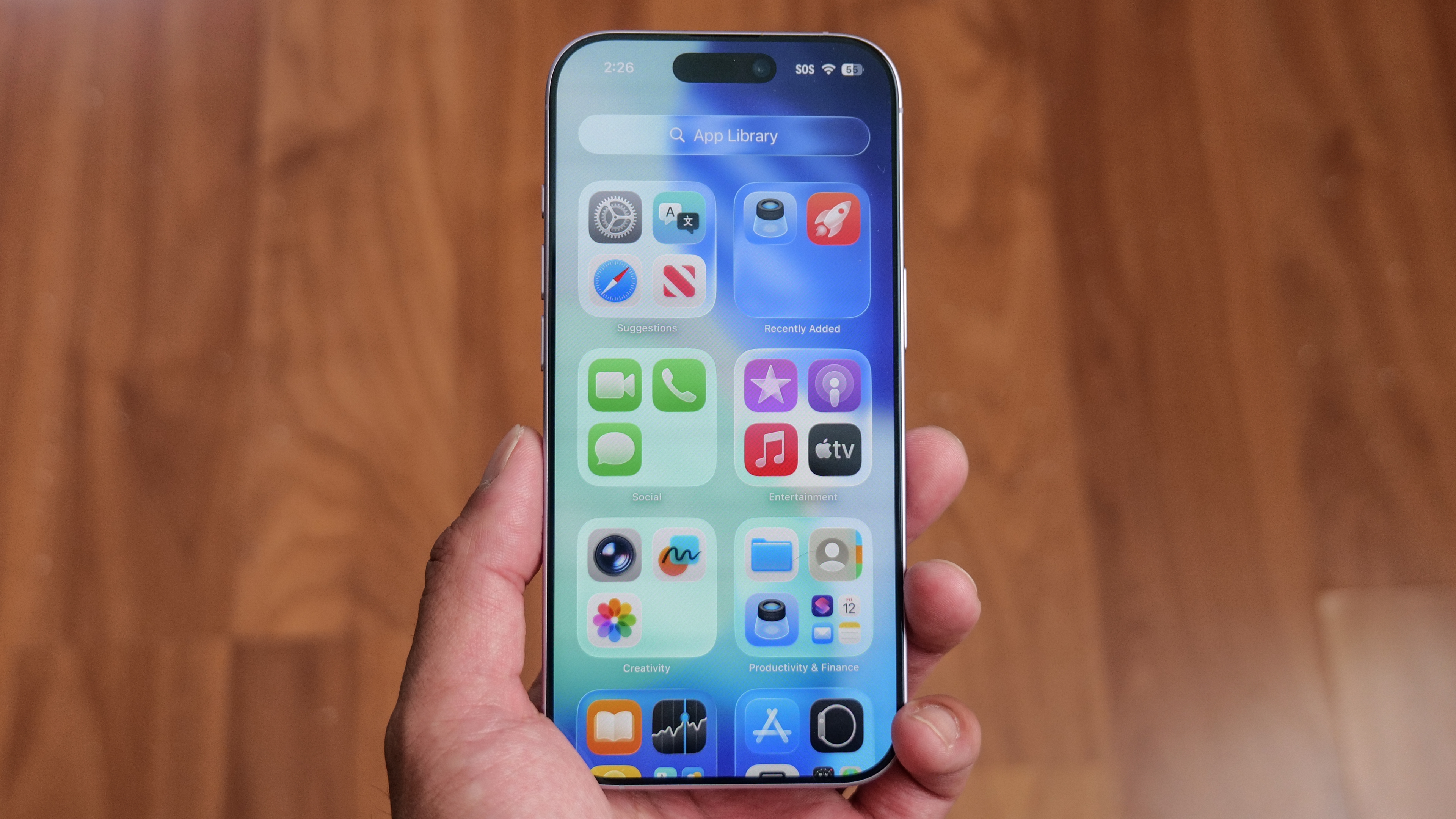 (Image credit: Tom's Guide / John Velasco)
Ever since updating to iOS 27, my iPhone has been acting up in ways that drive me completely nuts. Beyond the general sluggishness, my screen randomly stops responding to touch, and I’ve been hit with weird, glitchy quirks — like my go-to laughing emoji suddenly sending as a giant image file instead of a normal inline symbol.
If your phone feels warm to the touch or has started glitching since the update, you don't have to wait around for Apple to push out a bug fix to get your device back to normal.
While a lot of post-update lag comes from background indexing, which usually settles down after a couple of days, taking control of a few heavy system features made an immediate difference for me.
Tweak these demanding settings to instantly cut out the lag.
The performance cost of Liquid Glass
One of the biggest design shifts in recent iPhone history is Liquid Glass — that fancy, translucent UI look Apple introduced in iOS 26 that reflects ambient light and your background wallpaper. It looks great, but rendering all that real-time transparency forces your graphics chip to work overtime.
Apple did add a way in iOS 27 to adjust the interface intensity by going to Settings, Appearance, Liquid Glass and using the slider to bump up the tint and opacity. But while that slider helps with text legibility by flattening out distracting reflections, it doesn't actually stop it churning away in the background.
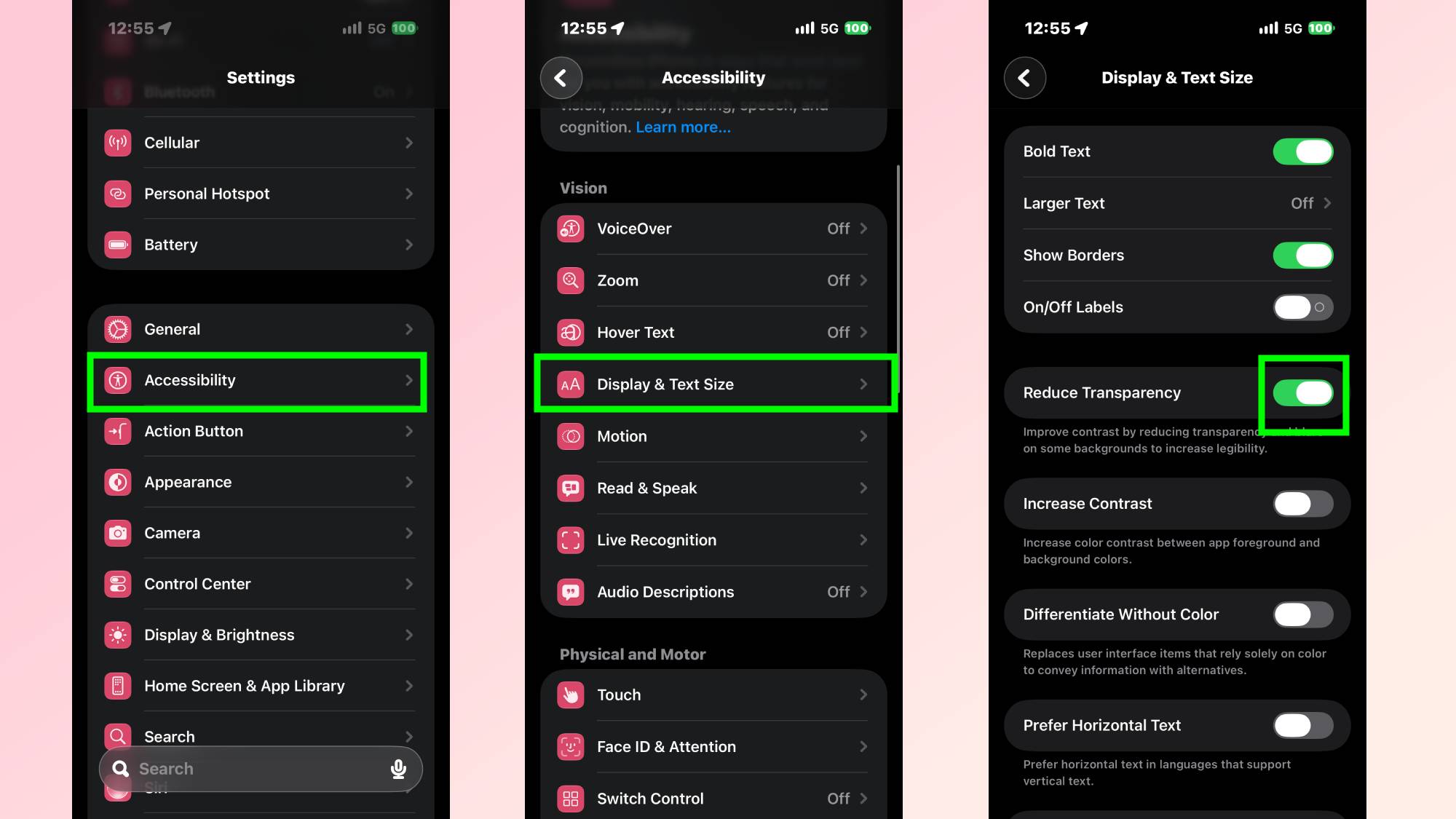
To kill the lag completely, you need to turn off the glass effects at the system level. Go to Settings, Accessibility, Display & Text Size and toggle on Reduce Transparency.
Stop using Low Power Mode all day
I used to leave Low Power Mode turned on full-time thinking it would save my battery, but it actually causes more harm than good when you are trying to use your phone.
Even with iOS 27’s recent improvements, which try to manage background tasks a bit smarter when the battery is low, the feature still works by intentionally cutting your iPhone’s processing speed in half. That extra throttling leads to constant lagging, slow app loading, and delayed web browsing while you are actively using the device.
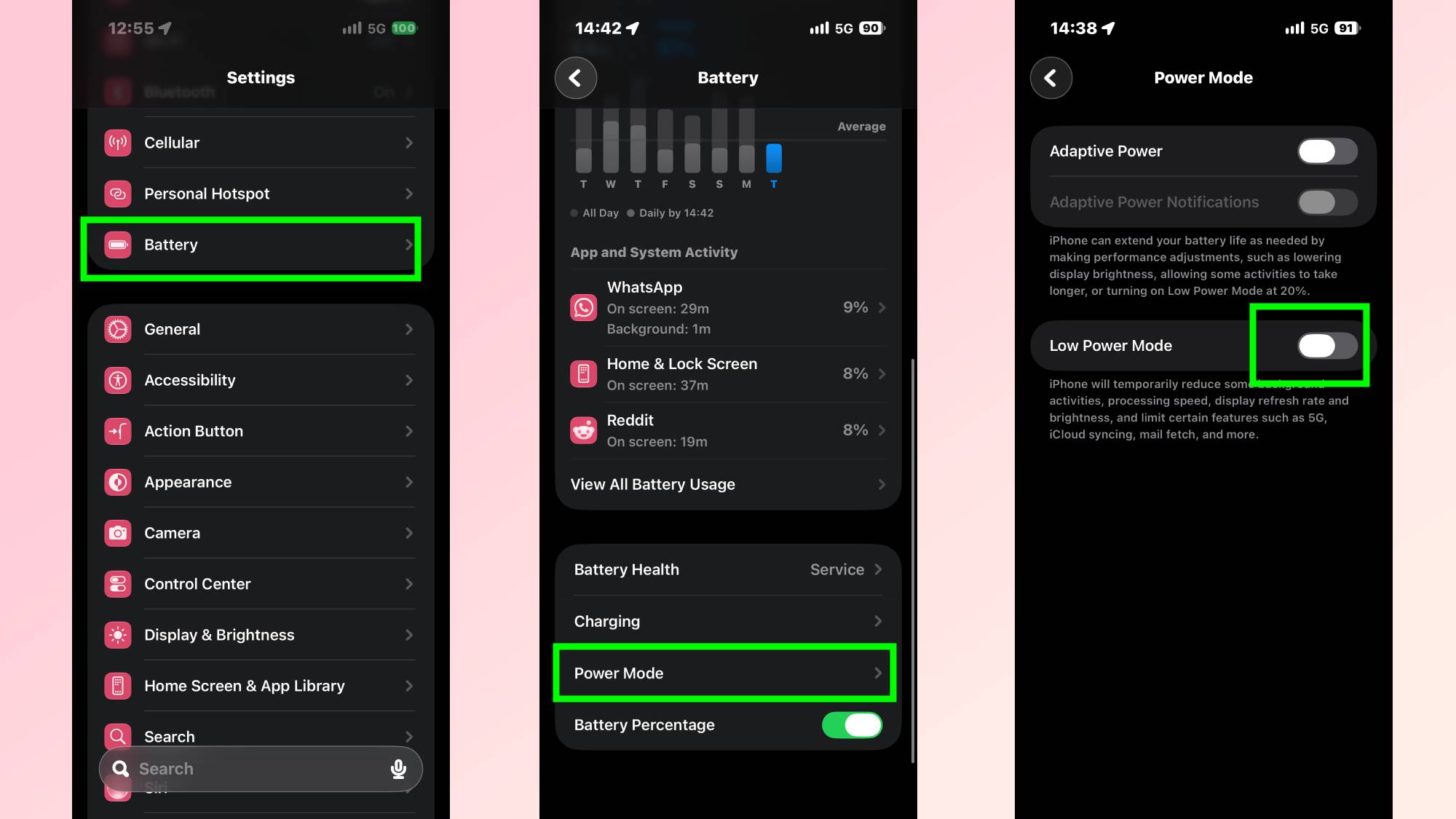
It is really meant as a safety net when your battery hits 20% and your phone is sitting idle, so keeping it toggled on all day just slows down your device for very little payoff. You can turn it off by heading to Settings, Battery, Power Mode, and toggling Low Power Mode off.
What to do if your iPhone is completely unresponsive?If your screen is completely locking up after a few quick swipes, you are likely hitting a known iOS 27 bug that freezes the display when pulling down the Control Center or Notification Center too fast.
When this happens, the torch and camera icons get stuck at the top of the display and your screen stops registering touches altogether. Because a frozen screen prevents you from using the normal power-off slider, the best way to unstick your phone is to trigger a hard reset using the side buttons.
Perform a hard reset to clear the swipe-freeze bug
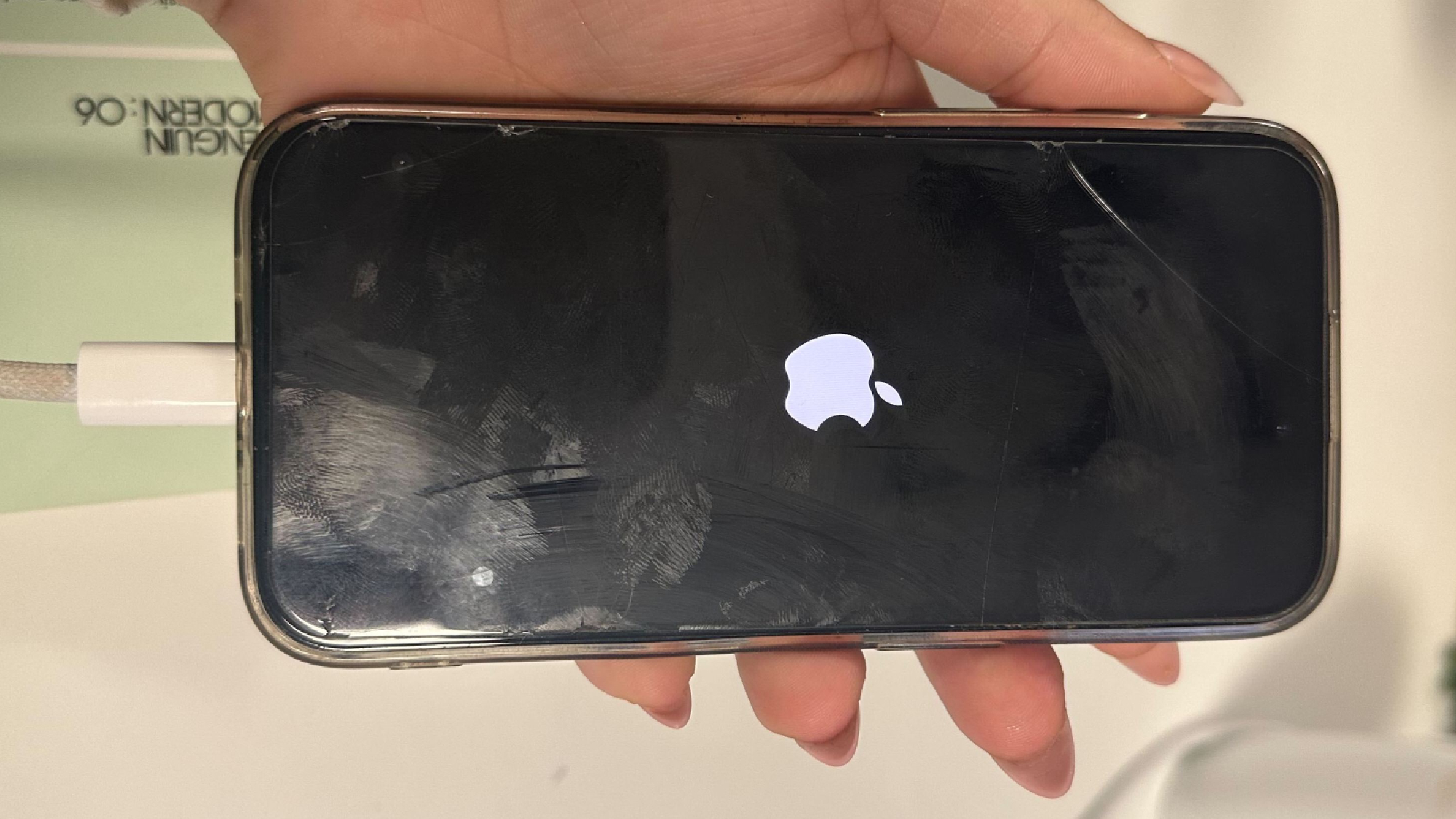
To force a restart, press and quickly release the Volume Up button, press and quickly release the Volume Down button, and then press and hold the Power button until the screen goes dark and the Apple logo appears.
Sign up to the Tom's iGuide weekly newsletter with coverage on everything from product launches to software updates, this is your go-to source for the latest updates on all the best Apple content.
This hard reboot clears out the frozen memory state, unfreezes your screen, and resets the glitchy touch response without erasing any of your data.
Follow Tom's Guide on Google News and add us as a preferred source to get our up-to-date news, analysis, and reviews in your feeds. Make sure to click the Follow button!
Kaycee is Tom's Guide's How-To Editor, known for tutorials that get straight to what works. She writes across phones, homes, TVs and everything in between — because life doesn't stick to categories and neither should good advice. She's spent years in content creation doing one thing really well: making complicated things click. Kaycee is also an award-winning poet and co-editor at Fox and Star Books.
| # | Наименование новости | Тональность | Информативность | Дата публикации |
|---|---|---|---|---|
| 1 | iOS 27 arrives with a smarter Siri and fixes you’ll actually notice | 0 | 24.28 | 14-09-2026 |
| 2 | Battery draining faster after updating to iOS 27? Don’t panic … | 0 | 15.36 | 15-09-2026 |
| 3 | iOS 27 speed improvements won’t matter individually, but will collectively | -2 | 6 | 18-06-2026 |
| 4 | iOS 27 legt iPhones lahm: Diese Tastenkombi hilft | 0 | 16.8 | 18-09-2026 |
| 5 | iOS: Warum du mit der Installation neuer Updates nicht mehr warten solltest | 0 | 9.88 | 30-09-2026 |
| 6 | Install iOS 27 today — there’s no reason to wait | 0 | 22.63 | 12-09-2026 |
| 7 | Apple releases iOS 27 with Siri AI and these new iPhone features | 0 | 17.44 | 14-09-2026 |
| 8 | Apple releases iOS 27 Beta 2 for developers and power users | 0 | 16.99 | 22-06-2026 |
| 9 | Five New Changes in iOS 27 Beta 5 | 0 | 21.11 | 11-08-2026 |