Просмотр новости
Найдите то, что Вас интересует
 Спутники
 РН
РН SpaceX
 Роскосмос
 NASA
NASA
СпутникиРНSpaceXРоскосмосNASATo enable Smart Window in Firefox, open Menu > Settings > AI Controls, find Smart Window, and set it to Available or Enabled. You ... [Read more...]
The post How to Enable or Disable Smart Window (AI Window) Mode in Mozilla Firefox appeared first on Techdows.
To enable Smart Window in Firefox, open Menu > Settings > AI Controls, find Smart Window, and set it to Available or Enabled. You can then open the Firefox menu and select New Smart Window. To disable it completely, return to AI Controls and set Smart Window to Blocked.
If Smart Window does not appear in Settings, update Firefox and confirm that you use the desktop browser with an eligible language, region and Mozilla account. Advanced users can also check the browser.smartwindow.enabled preference in about:config, although changing this flag does not guarantee access when Mozilla has not enabled the feature for the account or region.
Update, July 2026: Mozilla is gradually making Smart Window available to stable Firefox users. The rollout started with Firefox 150 in the United States and Canada and continues across later releases, including the Firefox 152 series. Availability still varies between users.
| Setting | Result |
|---|---|
| Available | Smart Window appears in Firefox and can be opened when needed. |
| Enabled | You have opted in and completed Smart Window setup. |
| Blocked | Firefox removes Smart Window access points and stops promoting the feature. |
| Block AI enhancements | Blocks Smart Window and other current or future generative AI features by default. |
Table of Contents
Smart Window is an optional Firefox desktop window type with a built-in AI assistant. Mozilla previously referred to the project as AI Window before adopting the Smart Window name.
A Smart Window works alongside normal Firefox windows rather than replacing them. You can keep Classic, Smart and Private windows open at the same time and switch a regular window to Smart Window without closing its tabs.
The assistant can use the pages and tabs you choose to reference to perform tasks such as:
Smart Window also includes a chat box on the New Tab page and an assistant sidebar that you can open while viewing a website.
Smart Window and the Firefox AI chatbot are differentThe standard AI chatbot available in the Firefox sidebar connects to providers such as ChatGPT, Gemini or Copilot. It does not receive access to your open tabs or browsing history from Firefox.
The Smart Window assistant has deeper browser integration. It can work with referenced tabs, the current page and browsing history that you explicitly ask it to use. Optional Memories can also personalise responses based on your activity.
Smart Window requirementsSmart Window currently requires:
Mozilla currently documents availability for en-US and en-CA users in the United States and Canada. Changing the Firefox language or an advanced preference does not necessarily bypass account or server-side eligibility checks.
How to Enable and Test Smart Window Feature in Mozilla FirefoxMethod 1: Enable Smart Window from Firefox SettingsUse the AI Controls page first because it is Mozilla’s supported method and does not require changing hidden browser preferences.

You can open the AI Controls page directly by entering the following address:
about:preferences#aiIf the Smart Window option is missing or unavailable, Firefox has probably not enabled it for your profile, account, language or region yet.
Open a new Smart WindowAfter completing setup:
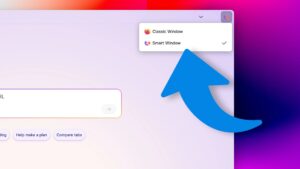
Firefox opens a separate Smart Window while leaving existing Classic and Private windows unchanged.
Switch a Classic Window to Smart WindowYou can convert the current Firefox window without reopening its tabs:
The same tabs remain open while Firefox changes the window interface and adds the Smart Window assistant.
Method 2: Enable Smart Window through about:configThe following advanced preference can expose Smart Window on some Firefox installations where the interface has not appeared automatically:
about:config in the address bar.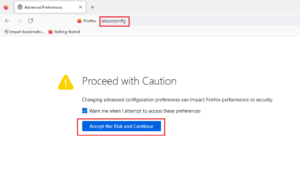
browser.smartwindow.enabledThe preference controls whether Firefox exposes Smart Window support in the browser interface. It does not guarantee that the service will work when your account, language or region is outside Mozilla’s current rollout.
Choose an AI model during setupNote: Preferences on the
about:configpage are intended for advanced testing. Mozilla can rename, remove or change their behaviour in later Firefox releases.
Firefox asks you to choose the model that powers the built-in assistant when you open Smart Window for the first time.
| Firefox label | Model | Provider | Intended use |
|---|---|---|---|
| Fast | Gemini 2.5 Flash Lite | Faster responses and shorter answers | |
| Flexible | Qwen3 235B A22B Instruct | Alibaba | General-purpose assistance |
| Personalized | GPT-OSS 120B | OpenAI | More frequent use of optional personalisation |
Mozilla can change the available models as the Smart Window beta develops. You can switch models later without repeating the full setup process.
How to Change or Customize Smart Window Settings in Mozilla FirefoxFirefox provides a dedicated Smart Window settings page for its assistant, model and startup behaviour.
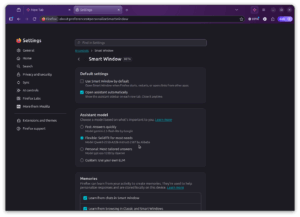
You can also enter about:preferences#ai in the address bar and open the Smart Window section.
The assistant can open automatically when you create a tab in Smart Window. To keep it closed by default:
The assistant remains available through the Ask button whenever you need it.
Change the default Smart Window AI modelThis selection applies to future conversations by default.
Change the model for one chatYou can use a different model for the current conversation without changing the default:
The change applies only to that chat. New conversations continue using the default model selected in Firefox Settings.
Use Smart Window by defaultFirefox 151.0.2 and later can open Smart Window automatically when you start the browser or open a link from another application, provided Smart Window is available and onboarding is complete.
If Firefox cannot open Smart Window, it falls back to a Classic window.
Manage Smart Window MemoriesMemories allow the assistant to create optional personalisation from Smart Window chats and browsing patterns. Mozilla says memories and chat history are stored locally on the device.
To review or disable them:
Smart Window does not use activity from Private Windows to create memories.
How to Disable or Remove Smart Window Feature in Mozilla FirefoxSwitch back to a Classic WindowUse this option when you want to leave Smart Window without blocking the feature:
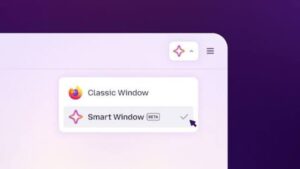
Your open tabs remain in the window while Firefox returns to its normal interface.
Block Smart Window from Firefox SettingsBlocking the feature removes its buttons, menu entries and promotional prompts:
You can restore access later by changing the setting back to Available or Enabled.
Disable all Firefox generative AI featuresFirefox includes one switch for users who do not want current or future generative AI features:
This blocks Smart Window and other covered features, including AI chatbot access, AI tab-group suggestions and AI-generated link-preview key points. Firefox also stops showing prompts for blocked features.
Disable Smart Window through about:configYou can restore the hidden preference when you previously enabled the feature manually:
about:config in the Firefox address bar.browser.smartwindow.enabled.Use the AI Controls setting when it is available because it also manages feature prompts and related access points.
Why Is Smart Window Missing in Firefox?Smart Window can remain unavailable even after installing Firefox 152.0.4 or a newer version. Check the following conditions:
Enabling browser.smartwindow.enabled can reveal the interface on some installations, but it cannot reliably unlock server-controlled access.
When you use the built-in assistant, Smart Window can work with:
Mozilla says Smart Window cannot access Private Window activity, saved passwords, payment information, unread email or arbitrary files stored on the device.
Requests pass through Mozilla’s servers before reaching the selected model provider. Chat conversations and memories remain stored locally, while model providers process prompts to return responses. Review the Smart Window privacy notice before enabling the feature when you regularly browse confidential work, financial or personal information.
FAQsIs Firefox Smart Window enabled by default?No. Smart Window is optional and requires the user to opt in and complete setup. Mozilla is releasing it gradually, so it does not appear for every Firefox user.
Which Firefox version includes Smart Window?Mozilla began gradually making Smart Window available with Firefox 150. Later releases, including Firefox 151 and 152, continue supporting it for eligible desktop users.
Does Firefox 152.0.4 guarantee access to Smart Window?No. Installing Firefox 152.0.4 provides a supported browser version, but access also depends on Mozilla’s rollout, account, language and region requirements.
Can I enable Smart Window without a Mozilla account?No. Mozilla currently requires users to sign in with a Mozilla account before completing Smart Window onboarding.
Does Smart Window work on Firefox for Android or iPhone?No. Mozilla currently documents Smart Window as a Firefox desktop feature.
Can I use Smart Window and normal Firefox windows together?Yes. Firefox allows Classic, Smart and Private windows to remain open at the same time.
Will switching to Smart Window close my open tabs?No. When you convert a Classic Window to Smart Window, its existing tabs remain open.
How do I remove the Smart Window assistant sidebar?Click the Ask button to close it temporarily. To keep it closed on new tabs, open Smart Window settings and disable Open assistant automatically.
Can I change the Smart Window model?Yes. Open Settings > AI Controls > Smart Window settings to change the default model. You can also select another model inside an individual chat.
What does browser.smartwindow.enabled do?The preference controls whether Firefox exposes Smart Window functionality in supported builds. Setting it to true does not override every regional, account or server-side restriction.
How do I completely block Firefox AI features?Open Settings > AI Controls and enable Block AI enhancements. Firefox blocks covered AI tools and stops promoting new ones while the switch remains enabled.
Does Smart Window use Private Browsing history?No. Mozilla says activity and data from Private Windows are excluded from Smart Window memories and browsing context.
Are Smart Window chats synced between devices?No. Mozilla currently stores chats and memories locally and does not sync them across devices.
| # | Наименование новости | Тональность | Информативность | Дата публикации |
|---|---|---|---|---|
| 1 | Firefox 157.0.1 | 0 | 13.13 | 06-10-2026 |
| 2 | Microsoft keeps adding AI to Windows 11, and most users can't fully disable it | 0 | 19.78 | 01-10-2026 |
| 3 | 7 Days: F-Droid 2.0, Firefox 2026 redesign, Android Auto gaming | 0 | 29.82 | 27-09-2026 |
| 4 | Tested: The Best Method I Tried to Remove Browser Extensions in Chrome, Edge, and Firefox | 0 | 9.23 | 17-06-2026 |
| 5 | Firefox's biggest update in years launches tomorrow. Here's how to get it early | 0 | 12.18 | 28-09-2026 |
| 6 | Mozilla обновила Firefox Компания обновила цвета браузера, иконки и темы, ... | 0 | 6.6 | 29-09-2026 |
| 7 | Gemini reads your tabs in Chrome by default, here's how to disable it | 0 | 10.01 | 06-10-2026 |
| 8 | 7 Days: Linux project renamed, big Firefox update, and Apple's $5.7 billion fine | 0 | 19.78 | 04-10-2026 |
| 9 | Firefox 157 Now Available With Visual Refresh, WebRTC Hardware AV1 Decode | 0 | 19.3 | 28-09-2026 |
| 10 | How to enable the built-in Sysmon activity monitor in Windows 11 | 0 | 20.6 | 04-10-2026 |