Просмотр новости
Найдите то, что Вас интересует
 Спутники
 РН
РН SpaceX
 Роскосмос
 NASA
NASA
СпутникиРНSpaceXРоскосмосNASA
Want less artificial intelligence on your iPhone? Here's how to ditch Siri AI and disable other Apple Intelligence features in iOS 27.
(via Cult of Mac - Your source for the latest Apple news, rumors, analysis, reviews, how-tos and deals.)
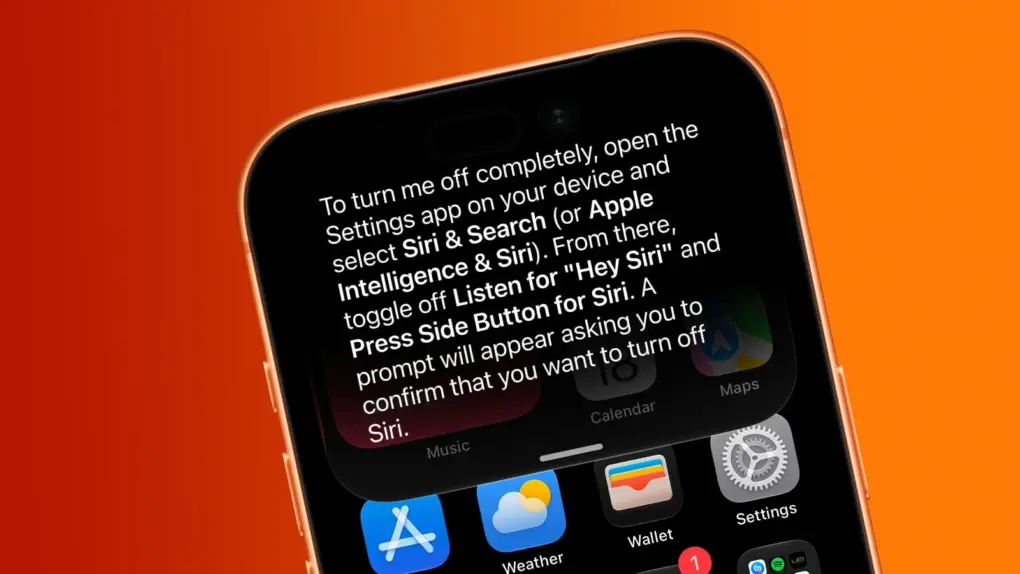 Want Siri AI gone from your iPhone? And other Apple Intelligence features, too? We can help.
 Although Apple is thrilled about the new Siri AI integrated into iOS 27, maybe artificial intelligence isn’t your thing. Fortunately, you can opt out of Apple’s new voice assistant.
iOS 27 lets you turn Siri off completely. Alternatively, you can switch from the new AI-powered Siri back to Siri Classic.
And if you absolutely do not want artificial intelligence in your iPhone, you can disable it … though that process is far more complex than is ideal.
Prefer your iPhone without the AI? Turn off Siri AI.Apple calls the new Siri AI “a profoundly more capable and personal assistant powered by the next generation of Apple Intelligence.” But not everyone wants an AI assistant on their iPhone. Some people prefer the simplicity and predictability of traditional Siri, while others might feel uncomfortable giving an AI their personal information. And some folks simply don’t find AI features useful and would rather not have them woven into an everyday device.
For those users, turning off Siri AI — or Apple Intelligence altogether — can make the iPhone feel more familiar and less cluttered with features they don’t plan to use.
Fortunately, Apple made it easy to turn off this feature … if you know where to look.
How to turn off Siri AI on your iPhone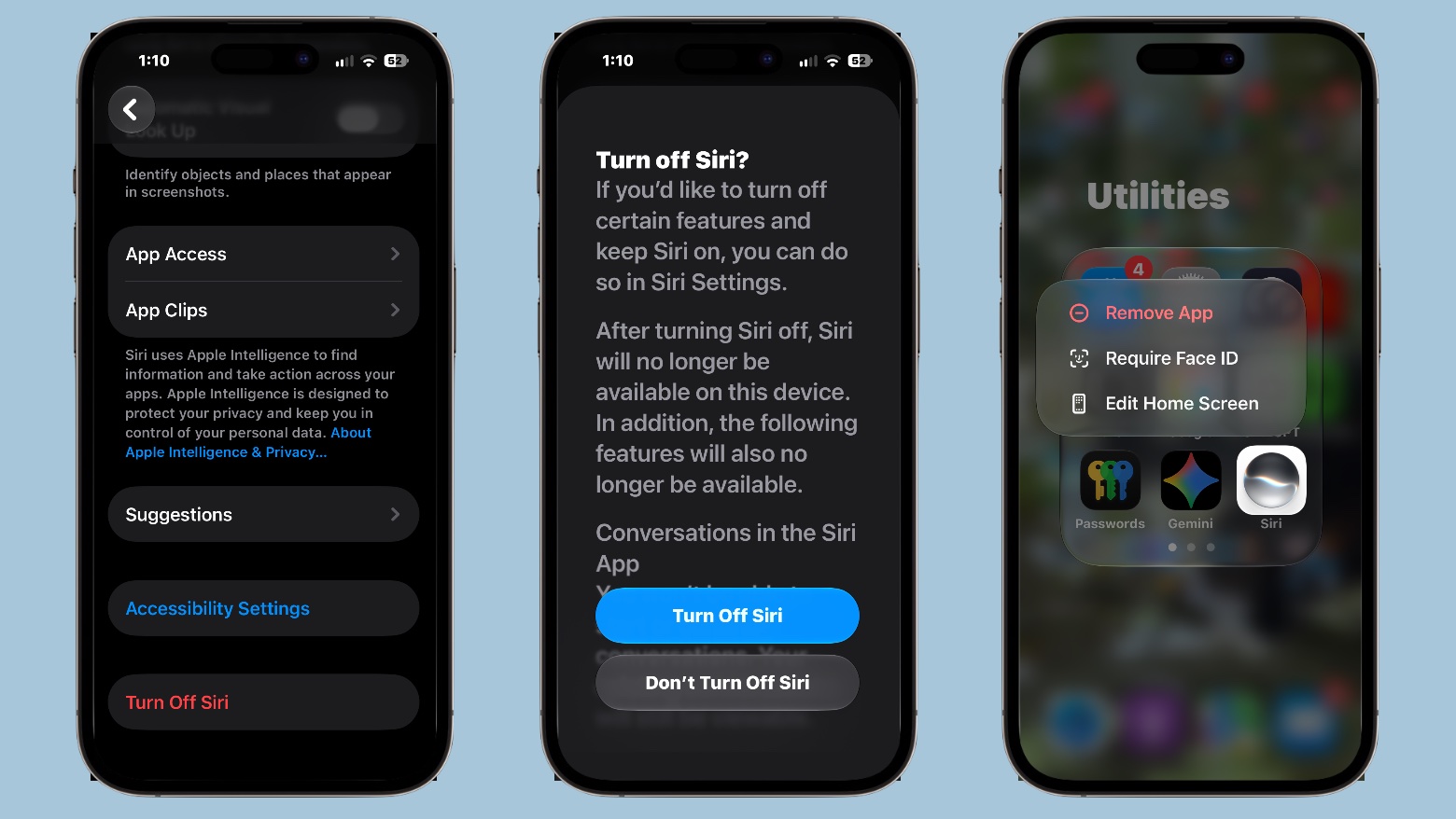 A couple of taps can deactivate Siri AI on your iPhone. Then you can delete the app, too.
If you don’t want Siri AI on your iPhone, open the Settings app, scroll down to Siri and tap on it. Then, down at the bottom of that screen, you’ll find Turn Off Siri. Tap that, then confirm your choice. Siri will no longer respond to your voice commands or other Siri triggers.
There’s also a Siri AI app that you can delete. Find its icon on your iPhone’s Home Screen, then tap and hold on it, and a pop-up window will appear. One of the options will be Remove App — tap that to delete the software from your iPhone.
How to switch back to Siri Classic in iOS 27At this point, you have the option to reactivate the classic version of Siri — the same one from iOS 26 and before. This is convenient for basic voice commands, like “Turn on living room lights” and “What is the score of the Braves game?”
To get it back, go through the process just described to deactivate Siri AI, then immediately reactivate Siri. At that point, iOS 27 gives you the option to go with the classic version instead.
How to turn off other Apple Intelligence features in iOS 27To be clear, turning off Siri AI doesn’t turn off all of Apple’s artificial intelligence features — AI is widely used in the new operating system. Unfortunately, iOS 27 doesn’t give you one big switch that disables every Apple Intelligence feature at once. Instead, Apple provides separate controls throughout the Settings app for the various AI-powered features.
Just as you turned off Siri AI by flipping the right switch, you’ll need to do the same with other AI features in iOS 27. It’s a lengthy list.
Less Apple Intelligence for Notifications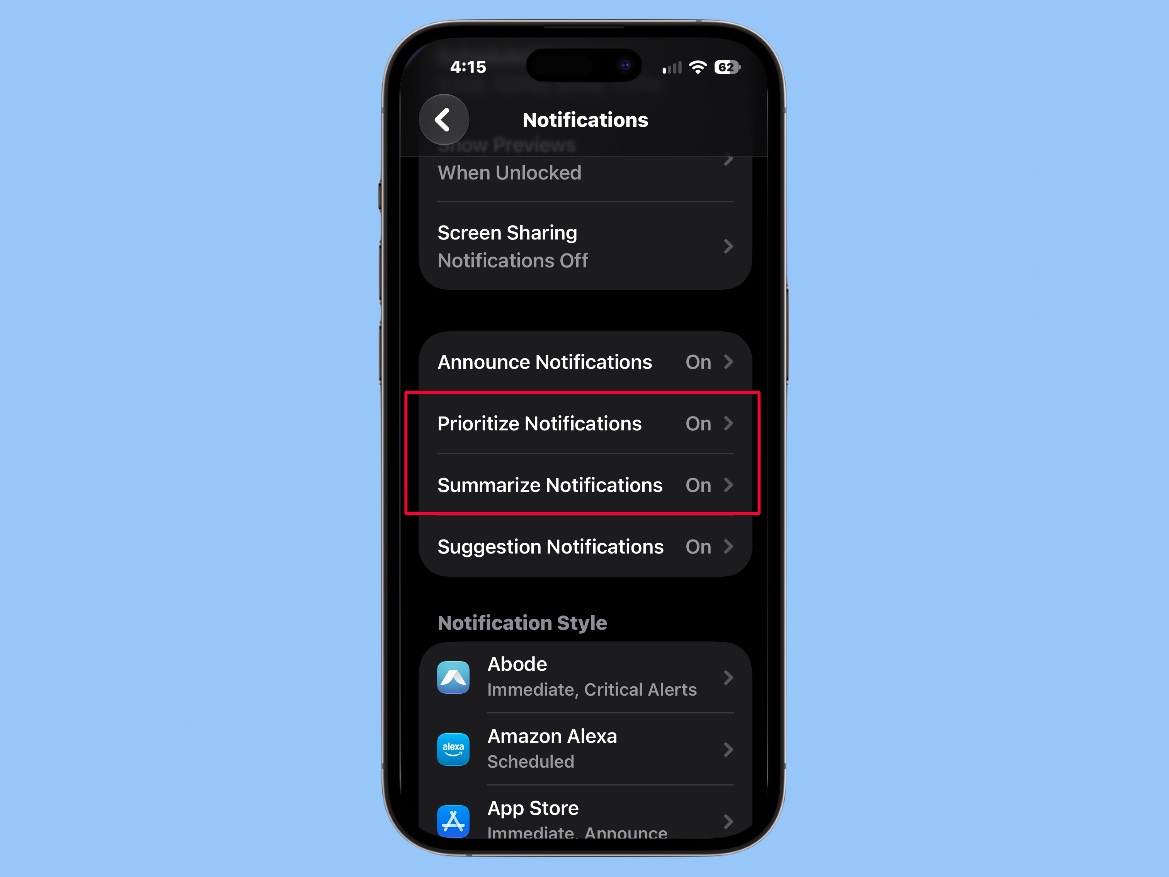 You can toggle off Apple Intelligence features related to notifications.
Apple Intelligence can decide which incoming notifications seem most important and move them to the top of the stack. If you’d rather your iPhone not make that decision for you, go to Settings > Notifications > Prioritize Notifications and toggle off the feature.
And if you don’t want AI to summarize your notifications, you can disable this feature under Settings > Notifications > Summarize Notifications.
Remove AI help from Messages and Mail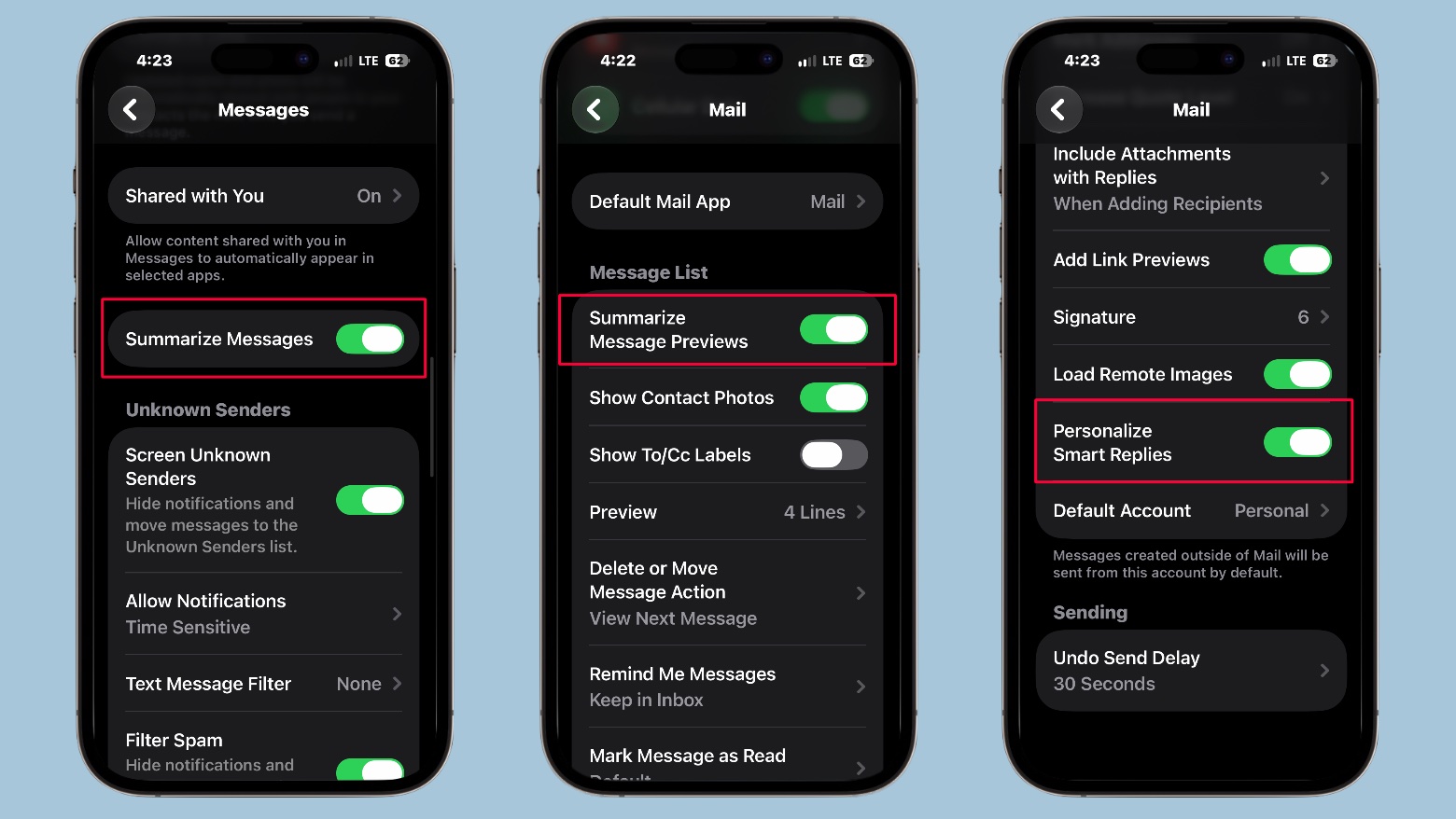 Switch these toggles to remove AI help from Messages and Mail in iOS 27.
The Messages and Mail apps use AI to summarize the messages you receive. To disable these, go into Settings > Apps > Messages and toggle off Summarize Notifications. Then go to Settings > Apps > Mail to toggle off Summarize Message Previews.
Apple Intelligence can also generate suggested email responses based on the message you’re in the middle of answering. If you don’t want AI writing suggested replies for you, go to Settings > Apps > Mail and turn off Personalize Smart Replies. This doesn’t disable Mail’s ordinary reply function — it simply removes the AI-generated Smart Reply suggestions.
Turn off AI-powered voicemail suggestions in iOS 27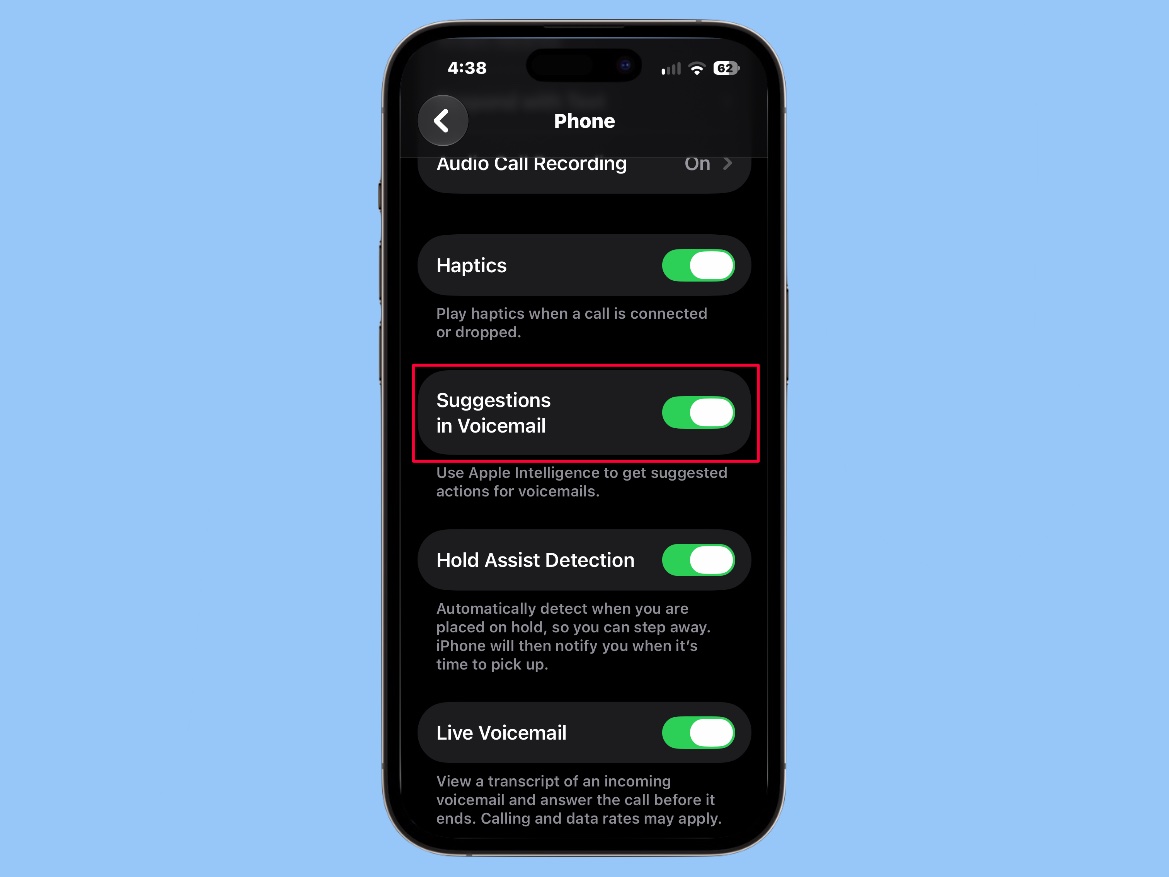 Don’t want AI to suggest actions based on your voice messages? Toggle that feature off.
In iOS 27, Apple Intelligence can examine voicemail transcripts and suggest actions based on what the caller said. For example, it might recommend creating a reminder or calendar event from information in a voicemail.
To disable those suggestions, go to Settings > Apps > Phone and turn off Suggestions in Voicemail. Your voicemail itself will continue to work; you’re just preventing iOS from offering AI-generated suggestions based on voicemail transcripts.
This helps you turn off AI in the most used applications, and the Apple Support document “Turn off and restrict access to Apple Intelligence features on iPhone” offers even more suggestions.
Ed Hardy has been writing full-time about tech for 26 years, and using it for much longer than that. His intro to Apple was a Macintosh SE/30 (which he still has), but now he uses a 13-inch iPad Pro as his primary computer.
That’s because he’s a “tablet first” type of guy. Rather than use a Macbook, he connects a keyboard case to the iPad. And instead of a desktop Mac, he connects his tablet to a 27-inch display and full-size keyboard. (So don’t try to tell him that everyone has to use a Mac to be productive.)
Before coming to Cult of Mac, Ed wrote for NotebookReview, TabletPCReview and Brighthand, as well as other sites.

| # | Наименование новости | Тональность | Информативность | Дата публикации |
|---|---|---|---|---|
| 1 | How you might be able to skip the waitlist and get the new Siri AI early | 5 | 5 | 24-06-2026 |
| 2 | iOS 27 just broke your oldest iPhone habit | 0 | 5 | 02-07-2026 |
| 3 | Hack to skip the Siri AI waitlist no longer works — but there may be another way | 0 | 5 | 23-06-2026 |
| 4 | Apple could spend big to give Siri AI better answers | 0 | 24.46 | 13-08-2026 |
| 5 | Skip the waitlist: Get the new Siri AI right now on macOS Golden Gate | 0 | 21.6 | 12-06-2026 |
| 6 | Apple patent hints at an iPhone that knows when to leave you alone | 0 | 19.4 | 13-08-2026 |
| 7 | What does Siri AI mean for your old HomePod? | 0 | 5 | 26-06-2026 |
| 8 | Siri AI can now talk to your iPhone apps — starting with your car | 5 | 5 | 08-07-2026 |
| 9 | Tips to customize the new iOS 27 Siri app on iPhone or Mac | 0 | 18.38 | 06-08-2026 |
| 10 | Watch out for this nasty iOS 27 freeze bug — here’s the fix | 0 | 21.33 | 17-09-2026 |
